#004 – Insights

Teams – Insights App

As a Teacher or educational practitioner using teams is a must during the COVID pandemic. But do you really know who is engaging from your classes in your Teams resources and channels. Using the Insights app from Microsoft you can get an engagement report which outlines which students have engaged with your channel content. This is an invaluable tool when it comes to safeguarding.

There are two new additions to Insights. The first addition is being able to have oversight of all your classes by adding the Insights app to the app rail as oppose to a single Team as a Tab. This provides ease of access to data to analyse class interactions.
#003 – Setup your groups correctly

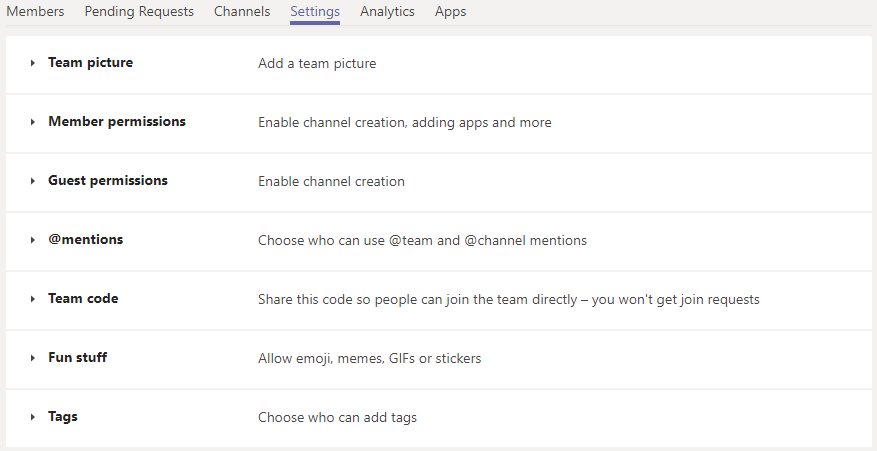
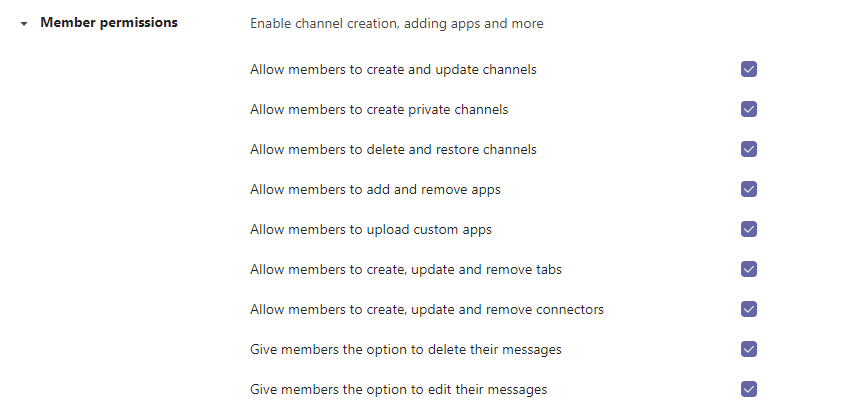
As a Teacher or Educational Practitioner you should be focused on how, where and when your students engage with yourself and others. It is important to make sure that all communication and collaboration is meaningful and takes place in the correct place. Control the setting for your groups and the level of interaction in Manage Team option, from here you can set the permissions for Members (your students) of the group.

Teams Groups settings

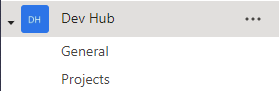
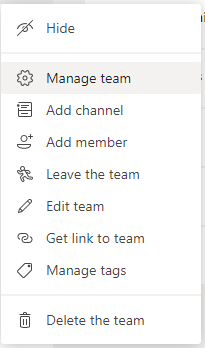
Gain access by CLICKING on the MORE ACTIONS (three dots) menu.

From here you can select MANAGE TEAM from the drop down menu.

From the series of TABS that appear, select the SETTINGS TAB.

From here you can ENABLE or DISABLE the abilities of your MEMBERS. This can help provide a greater sense of control in your Student Groups.

Having access to this level of control will help guide more meaningful interaction and help to safeguard students within your school/ educational establishment.

#002 – Snip & Sketch

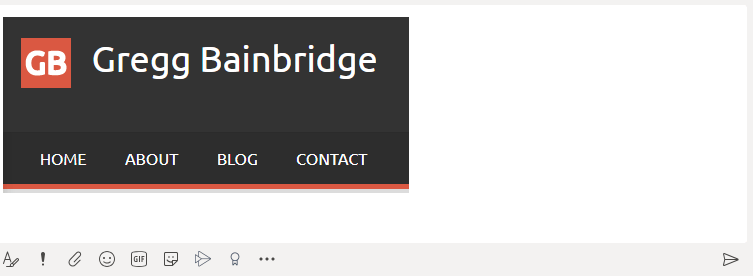
When you are trying to explain to your colleagues about specific elements of a problem with code or area of interest on screen, you can quickly show them using “Snip & Sketch” tool to capture specific areas of your screen and paste them in your Teams chat/ document or other location to share with others.

Windows 10 Snip & Sketch

During a meeting or chat activate Snip & Sketch by pressing WIN + SHIFT + S, You can then draw around your selected area of the screen to share with your colleagues.

You can use CTRL + V to paste your new image to most applications or use the paste option from most right-click menus.

Being able to quickly share elements your screen will help anyone you are communicating with understand potentially complex technical situations. Remember a picture is worth a thousand words, get to the heart of your problem fast by showing what the problem is.

#001 – Teams Pin Feature

There are always new ways to improve your IT proficiency and ability to be more efficient when working around IT. My “Quick Wins” weekly post will identify small changes you can make to your current practice to make your life that little bit easier. I will be suggesting some hints and tips in terms of what you can do to improve your practice.

Teams – Pin Feature

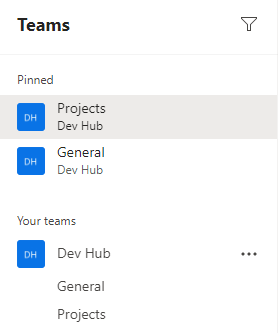
Use the Pin function to “PIN” feature to PIN your CHATS and CHANNELS in Microsoft Teams. This will help you arrange your CHATS and CHANNELS to help you find more relevant information faster.

Using the PIN feature will make that CHAT or CHANNEL appear attached to the top of their given panel, be it Teams Groups or Teams Chat.

Being able to pin Channels and chat will make finding the most used chats and channels easier to find when you are involved in a large number of projects.