When you are trying to explain to your colleagues about specific elements of a problem with code or area of interest on screen, you can quickly show them using “Snip & Sketch” tool to capture specific areas of your screen and paste them in your Teams chat/ document or other location to share with others.
Windows 10 – Snip & Sketch
During a meeting or chat activate Snip & Sketch by pressing WIN + SHIFT + S, You can then draw around your selected area of the screen to share with your colleagues.

You can use CTRL + V to paste your new image to most applications or use the paste option from most right-click menus.
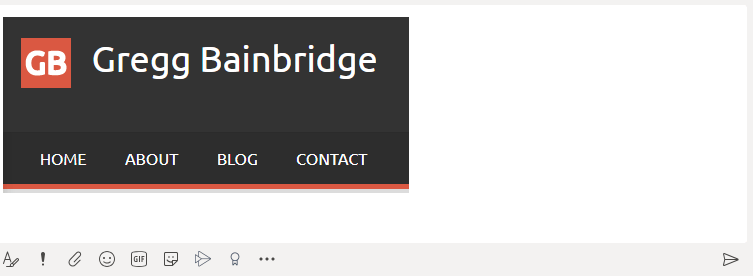
Being able to quickly share elements your screen will help anyone you are communicating with understand potentially complex technical situations. Remember a picture is worth a thousand words, get to the heart of your problem fast by showing what the problem is.
 Mr Bainbridge