I had the opportunity to attend (digitally of course) MS Inspire this year. This was my first year of attending, I discovered some interesting findings from the sessions I attended. During the event, I had planned to attend sessions that focused on the following: Education, Accessibility and Power Platform. These are areas of natural interest given my current role and previous experience.
I feel that these topics are linked given the current situation with COVID-19, the realm of remote working remote/ blended learning across the education sector.
Education
Microsoft have made major strides in tailoring their products and offerings for the education sector. It was impressive to see how the education professionals from around the world have rapidly deployed and adopted the use of Microsoft Teams. There were several showcases detailing how the use of Teams as a central hub had been used for welfare, teaching and assessment collaboration.
The focus for education was never aimed at the technology, but instead the individuals who were using it. This included teachers, students and their parents. During the COVID-19 period, the level of remote interaction has increased exponentially. The responsibility of education has not only fallen to the traditional relationship between student and teacher, but has served to strengthen the involvement of parents in the education process.
Its evident just from looking at the Microsoft Education Center (MEC) that Microsoft are trying to support families and schools through this difficult time by creating resources to train and educate adults on how to support students at home.
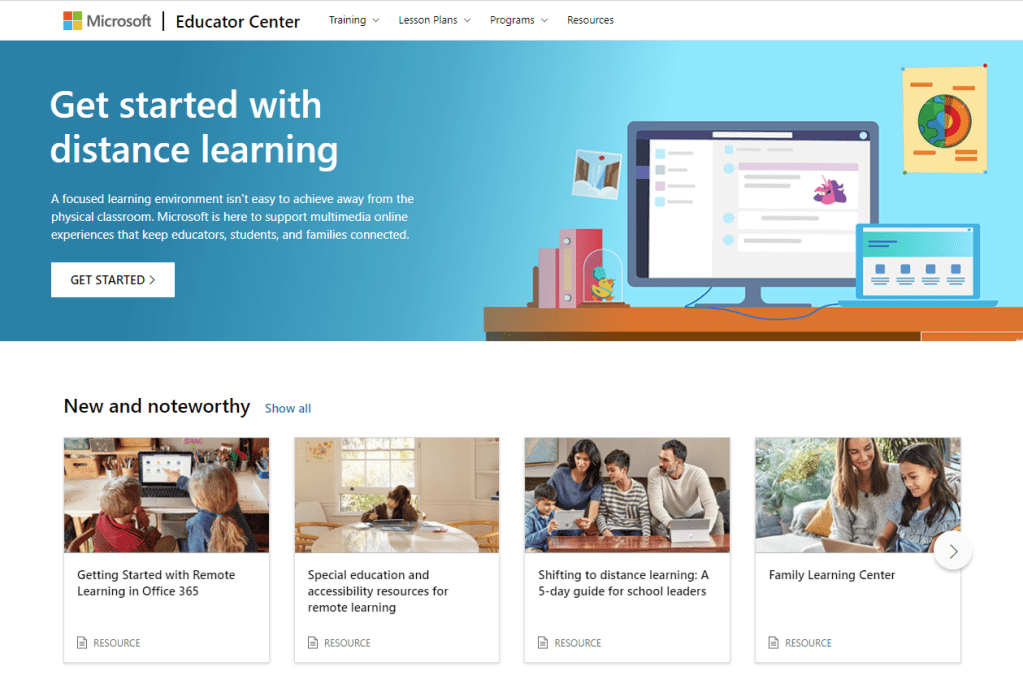
Credit has to go to the teams behind the MEC for rapidly developing and deploying supportive material for educators and families.
Accessibility
As always the focus for accessibility was people centred, looking at how the implementation of technology has improved the life experiences for all. There were showcase experiences from Phoenix Software and Software One on how they were beginning their journeys into a more accessible workplace for all. The message portrayed quite rightly is that there is no quick fix for such a complex issue. Through a process of self-reflection, research and education, both organisations were able to raise awareness surrounding accessibility in the workplace.
Accessibility is a key area for Microsoft, this was reiterated in Satya Nadella’s keynote about the priorities for Microsoft moving into the “new normal”, an inclusive approach to making a better world for everyone including the 1 billion people across the planet with disabilities.
Accessibility fundamentals

The Accessibility Fundamentals Learning Pathway is the first external accessibility learning module provided by Microsoft. This sits on the Microsoft Learn platform which enables you to boost your knowledge of Microsoft products and earn certification from your learning. The learning path consists of 4 modules:
1. Introduction to disability and accessibility
2. Microsoft accessibility features and tools
3. Creating accessible content with Microsoft 365
4. Digital accessibility
I have completed this learning pathway and found the modules to be insightful and provide a good rounded overview of accessibility & inclusion. It also highlights what Microsoft have provided in terms of tools and mindset towards helping others.
Power Platform
From my perspective there was a large emphasis placed on the Power Platform during Microsoft Inspire 2020. Trying to prepare employees, employers and everyone for a post COVID world will be challenging. The message provided in the sessions that I attended was that the Power The message from the sessions I attended was Power Platform can be used to support people by making their work easy to manage and maintain by promoting the optimisation of workflows and the automation of tasks. Of course Power Platform is capable of more than this, but my understanding of the sessions I attended was that 2021 is the time to raise awareness of the features and capabilities held within Power Platform to enable everyone to benefit from its use.

The need to up skill your work force was made clear but only to a certain extent. The structure of Power Automate and Power Apps has taken a no code/ low code approach. This will enable those without programming skills to leverage this technology with relatively little or no prior knowledge on programming or app development. During one of the keynotes from Satya Nadella he was quoted as saying: “you can start with just a list“. He was referring to the process by which anyone can create a bespoke solution using Power Platform to engage with an organisation to improve efficiency and productivity.
Final Thoughts
There is an inherent link between all of the above. Teachers have always found their time swamped with manual processes, an over abundance of marking with sometimes questionable links to outcomes or the improvement of life opportunities. Is this an opportunity to find a new way to increase the quality of teaching and learning via the use of automation within school processes?
The opportunity presents itself to invest in teachers to make them more digitally confident to tackle blended and remote learning in the short and medium term. Using accessibility tools and educating learner’s on how they can use accessibility tools to produce and access content both inside and outside the classroom, ensuring equal access to materials and opportunities to learn. Working towards a state where technology is fully utilised within schools to maximise teaching and learning and using data to help identify patterns and trends using Power Bi, allowing Heads of Department to dissect datasets at will to make informed, meaningful decisions has to be the new normal for ALL schools.


 Mr Bainbridge